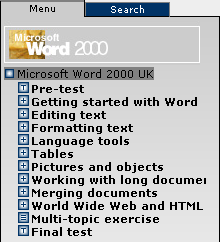
The menu on the left side of the program window shows an overview of the courses available. To choose a course, select it by clicking on the title. A menu of the main topics included in the selected course will then be displayed, see the illustration below. When you select a main topic an introduction of the topic appears, and the attached sub-topics are shown in the menu. The training can either be done in the given order, or you can choose the desired topic yourself. Pre-test should be performed to reveal the training needs.
The different topics usually consist of the content tabs Introduction, Theory, How To and Exercise, see the illustration below. In customised courses and non IT-training this could vary. If the training is done in the given order, the contents of the content tabs are shown one after another for each topic. You can yourself choose the content tab you wish utilise in the training. If a tab does not have any content, it appears inactive and cannot be selected. In some courses, tabs without content are not shown.

If you wish to do the perform training by the help of only
one content tab, Theory for example, you can use the pin
 .
The pin is located to the right of the content tabs and must be dragged to the
relevant tab. That particular tab element will be the only available when you
browse through the training to the previous or next element.
.
The pin is located to the right of the content tabs and must be dragged to the
relevant tab. That particular tab element will be the only available when you
browse through the training to the previous or next element.
Introduction tab illustrates the focus of the chosen topic. Usually a video begins automatically as soon as the new topic is selected.
Theory tab contains descriptions of functions and terms. The practical application of theory is illustrated through examples. Some theoretical contents are hyperlinked with illustrations or more information. Some of the theory tabs include image maps, where you can point on different elements to obtain further information.
The How to tab gives general and step-by-step descriptions for using the appropriate functions or procedures. Some of these tabs also contain tips for using a software program or applying different rules. Show Me videos can be launched to better understand the functionalities.
The Exercise tab can be used to practise new functions, so that the knowledge will stay with you longer. Some of the exercises also include Show Me videos and are solved directly in the software which has to be installed first. Other exercises contain simulations and different types of training tasks. The exercise texts can be displayed in a separate window, if requested. When the training is completed, you can open a suggested solution to compare your results.
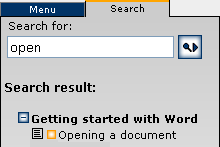
The search tool of DataPower®
Learning Online has an own index tab in the menu. This simplifies finding the
functions or topics you need. It is important to use topic-related search terms,
like save or format for instance, see the example in the
illustration below. To show a topic, select it from the hit list. When the index
tab Menu is chosen again, you return automatically to your former topic
in the training. In case you click on the
 icon, you go directly to the appropriate topic in the menu,
and the link to the topic visited last will be removed.
icon, you go directly to the appropriate topic in the menu,
and the link to the topic visited last will be removed.